Web Design
Chrome Now Warns Before Opening HTTP Sites: Is Your Website Ready?
For years, a website without HTTPS got away with a small “Not secure” label in the address bar. Most visitors never noticed it. That grace period is over. With Chrome 154, Google is switching on a setting called “Always Use Secure Connections” for everyone, and it changes what happens when someone tries to open a site that still runs on plain HTTP.
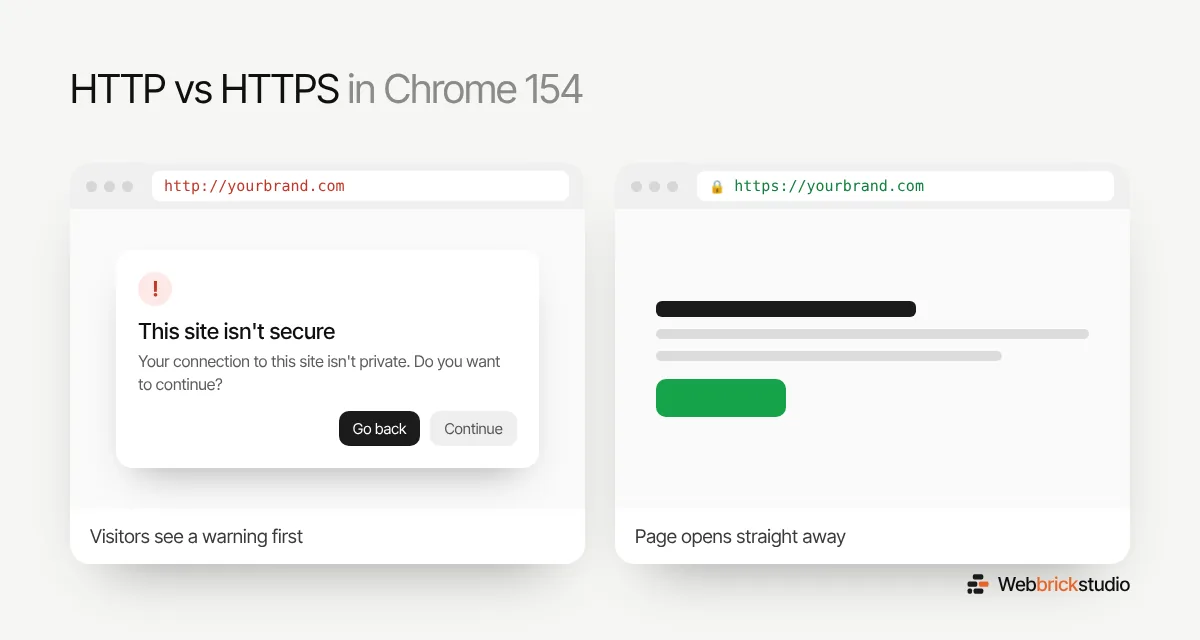
Instead of a quiet label, Chrome now tries to load the secure version of the site first. If there is no secure version, the visitor gets a warning and has to confirm before the page opens. For a business website, that is the kind of moment where people simply hit the back button.
What actually changed
Google first turned this on in April 2026 with Chrome 147, but only for people using Enhanced Safe Browsing. That alone was a big group, estimated at around a billion users. Chrome 154 extends it to all Chrome users, and the rollout is happening across this month. Chrome 154 also shipped with 108 security fixes, so Google is pushing people to update.
A few details are worth knowing:
- Chrome tries HTTPS first. Every connection is attempted over a secure link. If that works, nobody sees anything.
- HTTP only sites get a warning. If the site has no working HTTPS, Chrome asks the visitor to confirm before continuing.
- Regular sites are not nagged forever. Chrome holds back the warning for sites a person visits often, and remembers their choice. New and occasional visitors are the ones who see it, which is exactly who you are trying to win.
- It is for public websites. Internal addresses like routers and company intranets are treated separately, and IT teams can manage this with policies.
Google says that in its early tests, fewer than 3% of page visits hit a warning. That sounds small, but if your site is in that 3%, it is 100% of your problem.
Who should be worried
If your site already loads with a padlock on every page, you are mostly fine. The sites that will feel this are:
- Older business sites that were never moved to HTTPS.
- Sites where the SSL certificate expired and nobody noticed.
- Sites that have HTTPS, but still link to HTTP versions of pages, landing pages or subdomains, like an old shop or booking page.
- Campaign pages and microsites set up years ago on a separate domain and forgotten.
A quick check you can do in five minutes
- Type your domain with http:// in front. It should jump straight to the https:// version. If it stays on http, you need a redirect.
- Check the padlock on your key pages. Home, contact, checkout and any landing pages you run ads to.
- Look at your certificate’s expiry date. Click the padlock and view the certificate. Most hosts renew free certificates automatically, but it is worth confirming.
- Check subdomains and old domains. shop.yourbrand.com or an old campaign domain can still be on HTTP even if your main site is not.
- Search for mixed content. Images, scripts or fonts loaded over http:// on a secure page can break the padlock. Your browser’s developer console will flag them.
How to fix it on WordPress and Shopify
On Shopify, SSL is included and turned on automatically for your Shopify domains and any custom domain you connect. Problems usually come from old domains that were never pointed properly, or from hardcoded http:// links inside theme files and apps.
On WordPress, the steps are a little more hands on:
- Install a free SSL certificate from your host. Most hosts, including Hostinger, offer one with a single click.
- Update the WordPress Address and Site Address under Settings to use https://.
- Add a site wide 301 redirect from HTTP to HTTPS, either at the server level or through your host’s panel.
- Replace old http:// links in your database and theme so images and scripts load securely.
- Once everything works, consider turning on HSTS, which tells browsers to always use the secure version of your site.
Why this is about more than security
HTTPS protects your visitors’ data, but it also protects your sales. A warning screen before your home page is a terrible first impression, and people rarely click through a scary message to reach a business they do not know yet. Search engines have treated HTTPS as a trust signal for years as well. If you were putting this off, Chrome 154 is the reminder to stop.
Not sure if your site passes? Send it to Web Brick Studio and we will check your HTTPS setup, redirects and certificates for free.